

How to Create a Custom iMessage Profile in iOS 13
The idea behind the new feature is that contacts in the Messages become more easily identifiable, similar to the way WhatsApp and Facebook Messenger contacts have recognizable profile pictures.
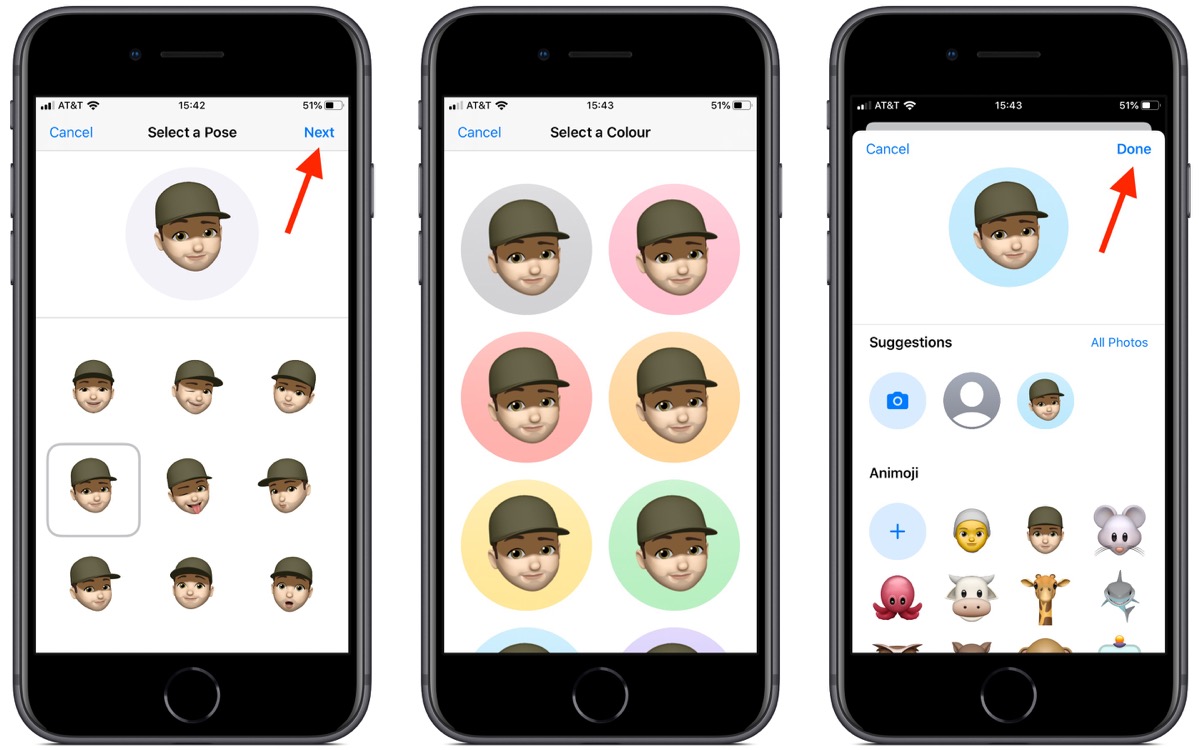
If you choose to use a Memoji as your profile pic, you'll be happy to learn that iOS 13 also provides options for customizing it, including pre-selected poses and background colors.
## How to Add a Custom Message Photo Profile in iOS 13
1. Launch the **Settings** app on your iPhone or [iPad][2].
2. Tap **Messages**.
3. Tap **Share Name and Photo**.
![][3]
4. To use a photo in your new profile, tap the Camera button and take a picture of yourself. Alternatively, tap **All Photos** to choose an existing picture from your photo albums.
5. Once you've selected a picture, you'll be given the option to move and scale it in the circular frame. Click **Choose** once you're done.
6. You'll then be asked to select a filter to apply to the photo. Alternatively, tap **Original** to skip this step.
7. Tap **Done**.
![][4]
8. Tap the empty fields alongside your profile picture to enter your first and second name.
9. Make sure the **Share Name and Photo** switch is toggled to the On position.
10. Choose from one of the automatic contact sharing options – **Contacts Only**, **Always Ask**, or **Anyone**.
## How to Add a Message Animoji/Memoji Profile in iOS 13
1. Launch the **Settings** app on your iPhone or iPad.
2. Tap **Messages**.
3. Tap **Share Name and Photo**.
![][3]
4. Select an Animoji from the default list. If you've created a Memoji, it will also appear in the list for you to choose.
5. In the next screen, select a pre-defined Pose.
![][5]
6. Move and scale the image in the circular profile frame, then tap **Choose**.
7. Select a background color.
8. Tap **Done**.
9. Tap the empty fields alongside your profile picture to enter your first and second name.
10. Make sure the **Share Name and Photo** switch is toggled to the On position.
11. Choose from one of the automatic contact sharing options: **Contacts Only**, **Always Ask**, or **Anyone**.
In iOS 13, you can also turn your Memoji into stickers, which can be used across numerous apps like Messages and Mail. Memoji stickers and the Memoji editor are also supported by all devices with an A9 chip or later – not just those with TrueDepth cameras.
Related Roundups: [iOS 13][1], [iPadOS][6]
This article, "[How to Create a Custom iMessage Profile in iOS 13][7]" first appeared on [MacRumors.com][8]
[Discuss this article][9] in our forums
[![][10]][11] [![][12]][13]
[1]: https://www.macrumors.com/roundup/ios-13/
[2]: https://www.macrumors.com/roundup/ipad/
[3]: http://cdn.macrumors.com/article-new/2019/06/how-to-create-a-custome-imessage-profile-in-ios-13.jpg
[4]: http://cdn.macrumors.com/article-new/2019/06/how-to-create-a-custom-imessage-profile-in-ios-13.jpg
[5]: http://cdn.macrumors.com/article-new/2019/06/how-to-create-a-custom-memoji-imessage-profile-in-ios-13.jpg
[6]: https://www.macrumors.com/roundup/ipados/
[7]: https://www.macrumors.com/how-to/custom-imessage-profile/
[8]: https://www.macrumors.com
[9]: https://forums.macrumors.com/threads/how-to-create-a-custom-imessage-profile-in-ios-13.2185642/
[10]: http://feeds.feedburner.com/~ff/MacRumors-iPhone?d=yIl2AUoC8zA
[11]: http://feeds.macrumors.com/~ff/MacRumors-iPhone?a=ZkLioczFbLw:DjN9pRaYA0I:yIl2AUoC8zA
[12]: http://feeds.feedburner.com/~ff/MacRumors-iPhone?d=6W8y8wAjSf4
[13]: http://feeds.macrumors.com/~ff/MacRumors-iPhone?a=ZkLioczFbLw:DjN9pRaYA0I:6W8y8wAjSf4


URL: https://www.macrumors.com/how-to/custom-imessage-profile/
Tidak ada komentar: